1Look at your router's device list
Your router hands out addresses to your devices, so its admin page or app is a good first place to look. First, find the router's address.
On a Mac:
- Open System Settings and click Wi-Fi.
- Click Details… next to your network.
- Read the address in the Router field.
On an iPhone:
- Open Settings and tap Wi-Fi.
- Tap the info button next to your network.
- Read the Router address.
Type that address in a web browser and sign in, or open your router maker's app. Look for a section with a name such as clients, connected devices, network map or DHCP list. The names and menus depend on the brand and model.
Good to know: you need the router's sign-in details, and each router presents its list in its own way. On a network you do not manage, you will usually not have access.
Why a device can look unfamiliar: Apple devices can use a private Wi-Fi address. The router may then show an address that differs from the hardware address of the device. If the setting is on Rotating, the same device can also look new after a while. On an iPhone you can see the setting under Settings > Wi-Fi, in the details of the network.
2Use Terminal on a Mac
Terminal has useful tools if you are comfortable typing commands. Open it from the Utilities folder in Applications.
List the addresses your Mac knows about
arp -aThis shows the entries in the Mac's ARP table, which links network addresses to hardware addresses. It is not a full inventory: it is a temporary list of the addresses your Mac currently holds, and entries expire.
Check one device
ping -c 4 192.168.1.1Replace the address with the one you want to check. The command sends four requests and shows the replies. A device that does not reply is not necessarily absent: some devices ignore ping.
Find services that announce themselves
dns-sd -B _http._tcpThis lists devices that advertise a web page on the local network. It looks for one type of service at a time, so other devices do not appear. Press Control-C to stop it.
3Check Network in the Finder
In a Finder window, open Network under Locations in the sidebar. You can find shared computers and file servers there, such as a Mac or a Windows PC with file sharing turned on.
Good to know: this view is about sharing. It is not a list of everything connected to your network.
4What about the iPhone?
The router's device list works from the iPhone's browser or from your router maker's app. In the Apple support pages we checked, we did not find a built-in iPhone view that lists every device on a Wi-Fi network. A network scanner app does that part from the phone.
5Scan your network with Ping on iPhone, iPad or Mac
Ping Network Scanner has a local network scan that lists the devices it finds, without a router password.
On iPhone or iPad:
- Connect to the Wi-Fi network you want to check.
- Open Ping, tap Tools at the top right, then Scan Network.
- Tap Start Scan.
On a Mac:
- Connect to the network over Wi-Fi.
- In the Ping sidebar, under Tools, choose Scan Network. You can also press Command-7.
- Click Start Scan in the toolbar.
The first time, your device asks whether Ping may access the local network. The scan needs that permission. To change it later, go to Privacy & Security > Local Network, in Settings on iPhone or in System Settings on a Mac.
What you see
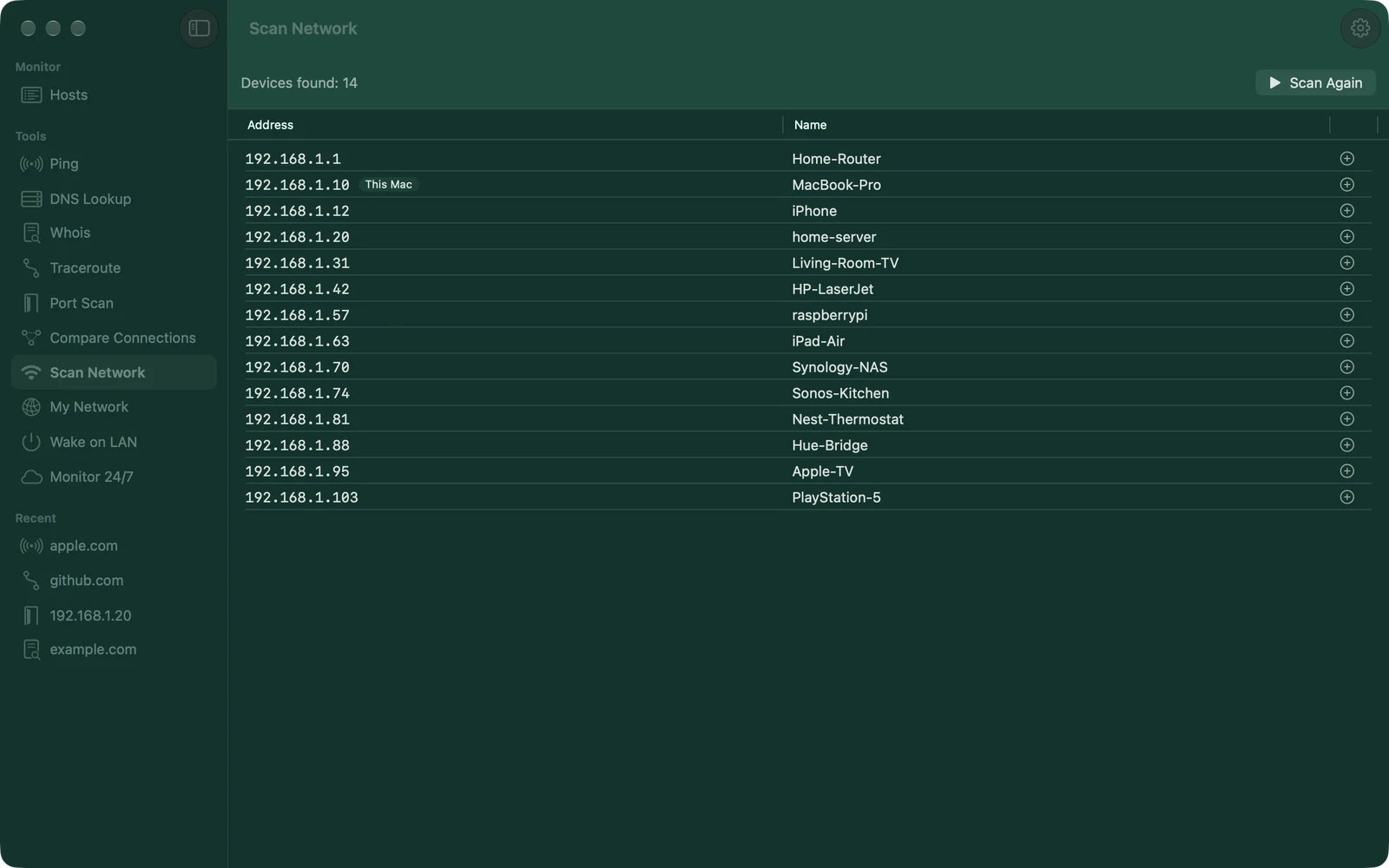
Each result shows an IP address, with a name when one can be found. Ping looks for names in several ways, which helps when your router does not publish them. Some devices still show only an address.
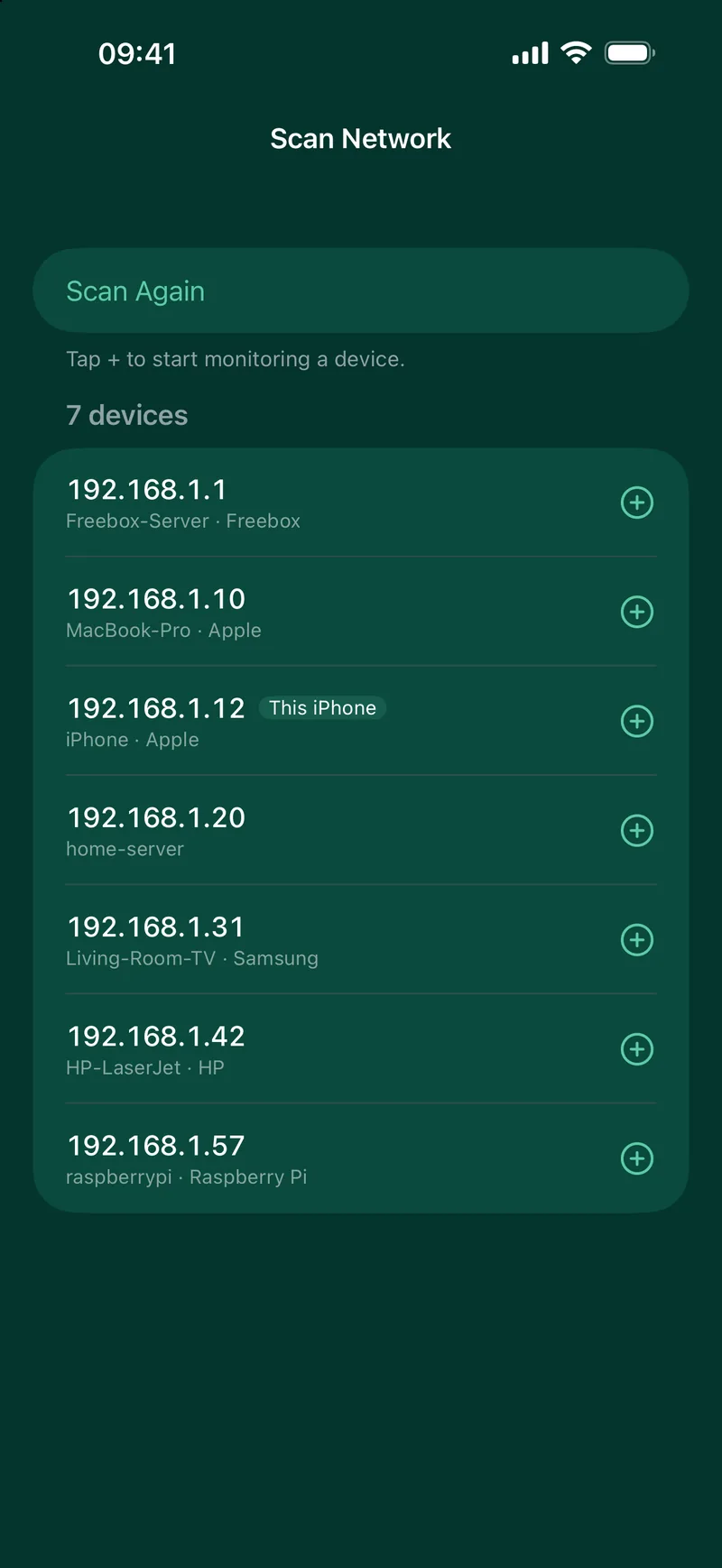
On iPhone, you can copy an address or add a device to the hosts you monitor. On a Mac, right-click a result to ping it, run a port scan or a traceroute, or copy its name.
Free and Pro
The network scan is free on iPhone, iPad and Mac, with no limit on the number of scans. The free version on iPhone and iPad has ads.
You can monitor up to 4 hosts for free, or up to 20 with Ping Pro, a one-time purchase that covers all three devices. Port scans are limited to 2 a day in the free version and unlimited with Pro.
What a scan cannot do
- It works on Wi-Fi, with IPv4 addresses. It does not scan from a cellular connection.
- It does not show MAC addresses. Your router's list is the place to look for them.
- A device that is asleep or ignores ping can be missed.
- On guest networks, or when the router isolates devices from each other, you may see very little.
- It covers networks of up to 1,022 addresses, which is more than a typical home network uses.
Only scan networks that you own or are allowed to check.
Which method should you use?
- To see what your router knows, including devices you may want to remove from your Wi-Fi: the router's device list.
- To check addresses or one device from a Mac: Terminal.
- To reach a shared computer or file server: Network in the Finder.
- To get a quick list from your phone or Mac without signing in to the router: a scan with Ping.
Using two methods is often useful, because each one can see something the other does not.
Questions
Why is a device missing from the scan?
It may be asleep, it may ignore ping, or it may be on another network, such as a guest network. Some routers also stop Wi-Fi devices from seeing each other. Wake the device, check that both are on the same network, then scan again.
Can an iPhone app show the MAC address of other devices?
Ping does not show them, because iOS does not give apps that information. Look in your router's device list, or in the network settings of the device itself.
What should I do if I find a device I do not know?
First check whether it is one of yours: a phone, a watch, a TV or a smart plug can have an unclear name or none, and a private Wi-Fi address can make a familiar device look new. If you still cannot identify it, change your Wi-Fi password. Apple recommends WPA3 security where your devices support it.
Why do the router's list and the scan not match?
They look at the network in different ways. A router list comes from the router itself, while a scan reports the devices that answer when it runs.
Find your devices from your phone or Mac