The ways at a glance
| Method | On the desktop | All disks at once | Forecast | Alert level you choose |
|---|---|---|---|---|
| Item info on the desktop | Yes | Disks shown on the desktop | No | No |
| Finder status bar | No | One per window | No | No |
| Storage in System Settings | No | Startup disk first | No | No |
| Disk Utility | No | One at a time | No | No |
| Disk Usage widgets | Yes | Yes | Yes | Yes |
1Show your disks on the desktop with item info
This is the closest built-in way to see disk space on the desktop itself.
- Click the Finder icon in the Dock, then choose Finder > Settings and open General.
- Under the items to show on the desktop, tick Hard disks. Tick External disks and Connected servers too if you want their icons.
- Click an empty part of the desktop.
- Choose View > Show View Options.
- Tick Show item info.
Under a disk icon, Finder then shows the capacity of the disk and its free space.
Good to know: the figure sits in small text under an icon, so you see it when the desktop is visible and the icon is not covered. The steps above give you the number of the moment, with no history of how it changed.
2Use the Finder status bar
If you mostly check space while handling files, the status bar is quick.
- Open a Finder window.
- Choose View > Show Status Bar.
The status bar shows the number of items and the available disk space.
Good to know: you need a Finder window open to read it.
3Check Storage in System Settings
For a picture of what uses your internal disk, open the storage settings.
- Choose the Apple menu > System Settings.
- Click General, then Storage.
A bar shows used and free space, split by category. Hold the pointer over a color to see the size of that category. On macOS versions earlier than Ventura, the same kind of view is under About This Mac > Storage.
Good to know: Apple describes this view for the internal disk. It is a place you visit, not something that stays on your desktop.
4Use Disk Utility for the details
Disk Utility is the most detailed built-in view.
- Open Disk Utility (in Applications, in the Utilities folder).
- Choose View > Show All Devices.
- Select a volume in the sidebar.
You can read how much of the volume is Used and Free. You may also see Purgeable space. Apple explains that available space can include it: macOS removes this data by itself when the space is needed. That is one reason two free space figures on a Mac do not always match.
Good to know: it is a maintenance tool. Look, and do not click Erase or Partition unless you mean to.
5Keep free space on your desktop with Disk Usage widgets
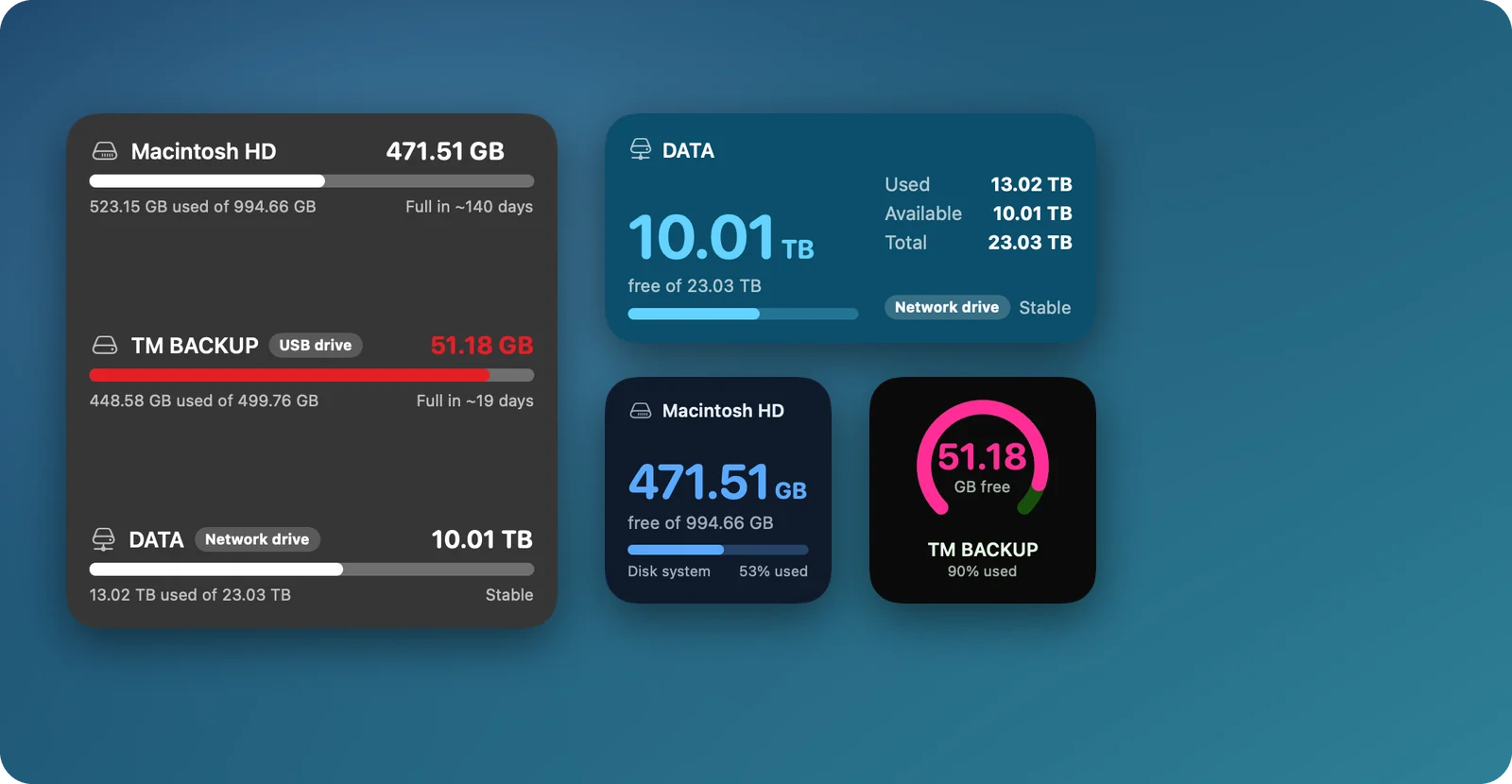
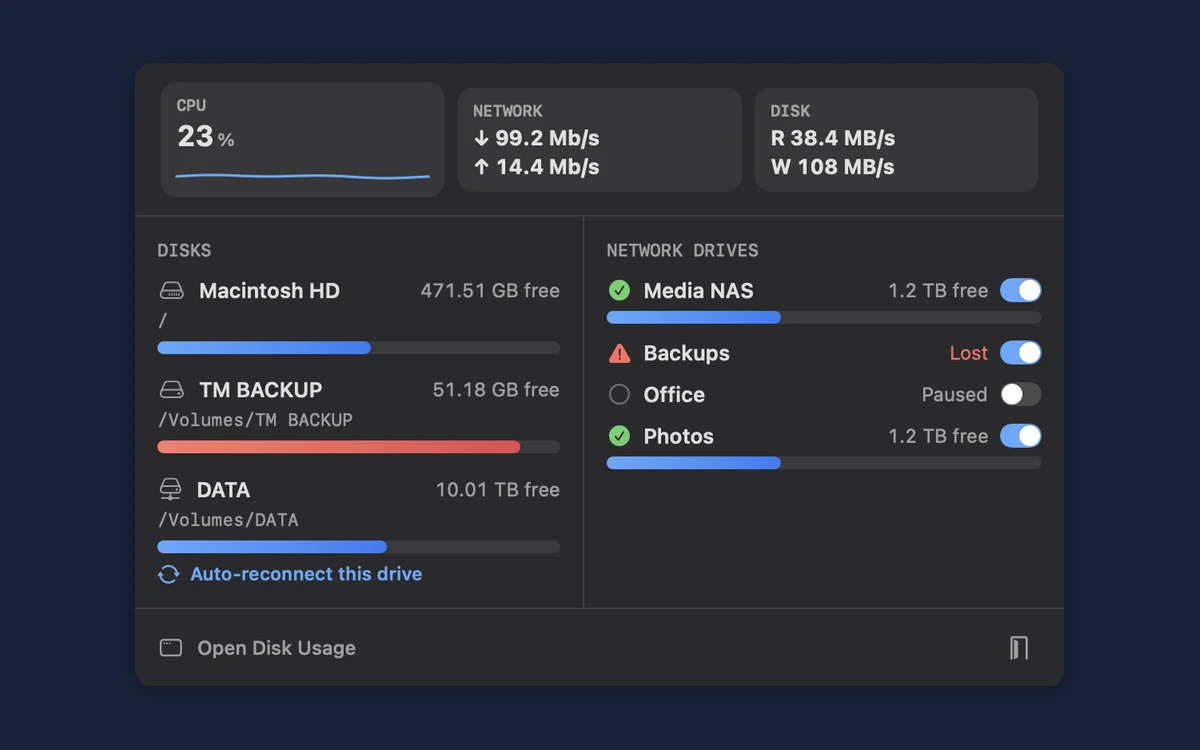
The methods above answer the question when you ask it. If you would rather have the answer in view, Disk Usage puts widgets on your Mac desktop that show how much space is left on your startup disk, external drives and network volumes.
To add a widget once the app is installed:
- Open Disk Usage once.
- Control-click your wallpaper and choose Edit Widgets.
- Find Disk Usage in the widget gallery.
- Click a widget, or drag it where you want it, then click Done.
You can choose small, medium, large or extra large widgets. You can also set the free space level below which a disk turns to its critical color, 30% free by default.
The app adds what a single number cannot tell you:
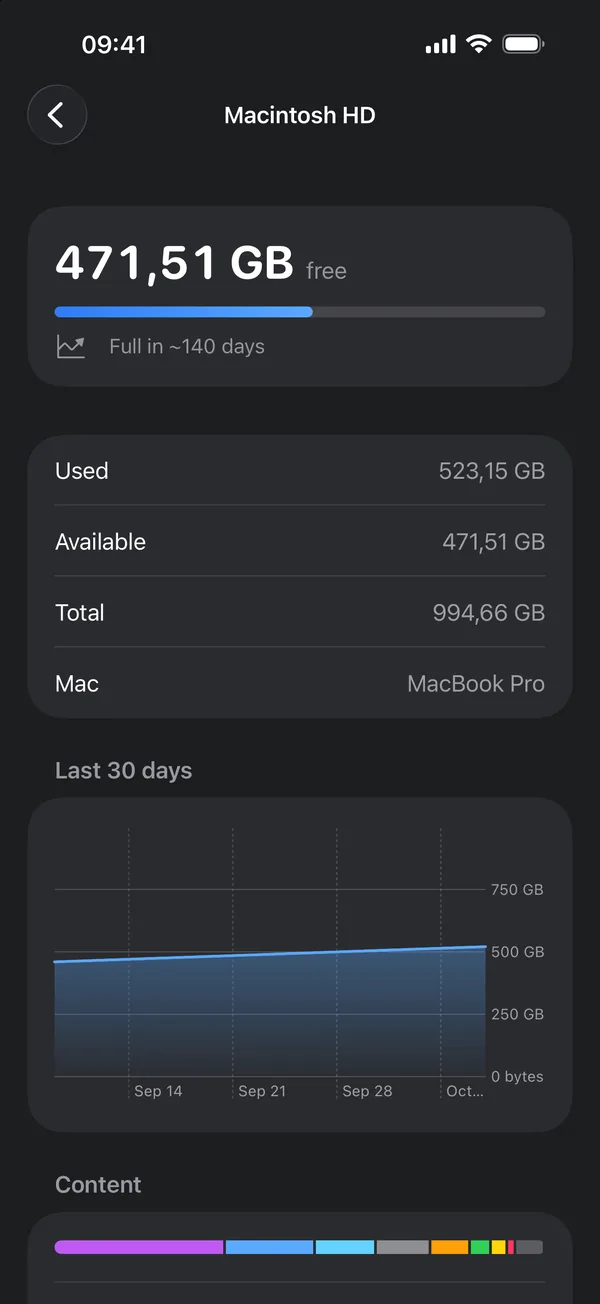
- History and forecast: daily history for each disk, charts over 30 days, 90 days and 1 year, and an estimate of when a disk will be full at the current pace.
- Low space alerts: a notification when a disk is almost full, and a weekly summary of the disk that changed the most.
- Menu bar: the free space of your startup disk stays visible, even when windows cover the desktop.
- What takes up space: a breakdown by type and the largest files of each category, with their location. Disk Usage never deletes anything on its own. In System Data, it moves caches, logs and build files to the Trash only after you confirm, with Put Back.
- On your iPhone: turn on Show on iPhone and your disks appear in the iPhone app through your own private iCloud.
Disk Usage runs on macOS 14 or later. The app is free, and some extras, such as more widget styles, are optional one-time purchases. In the Network Drives widget, one drive is free, and showing more than one is a one-time purchase.
Which method should you use?
- For a quick check while working with files: the Finder status bar.
- To understand what uses your internal disk: Storage in System Settings.
- For volume details and purgeable space: Disk Utility.
- For a number next to a disk icon: item info on the desktop.
- To keep several disks in view, follow how they fill up and get a warning: desktop widgets with Disk Usage.
These work well together. A widget tells you when a disk deserves attention, and the built-in views help you look closer.
Questions
Why is System Data so big?
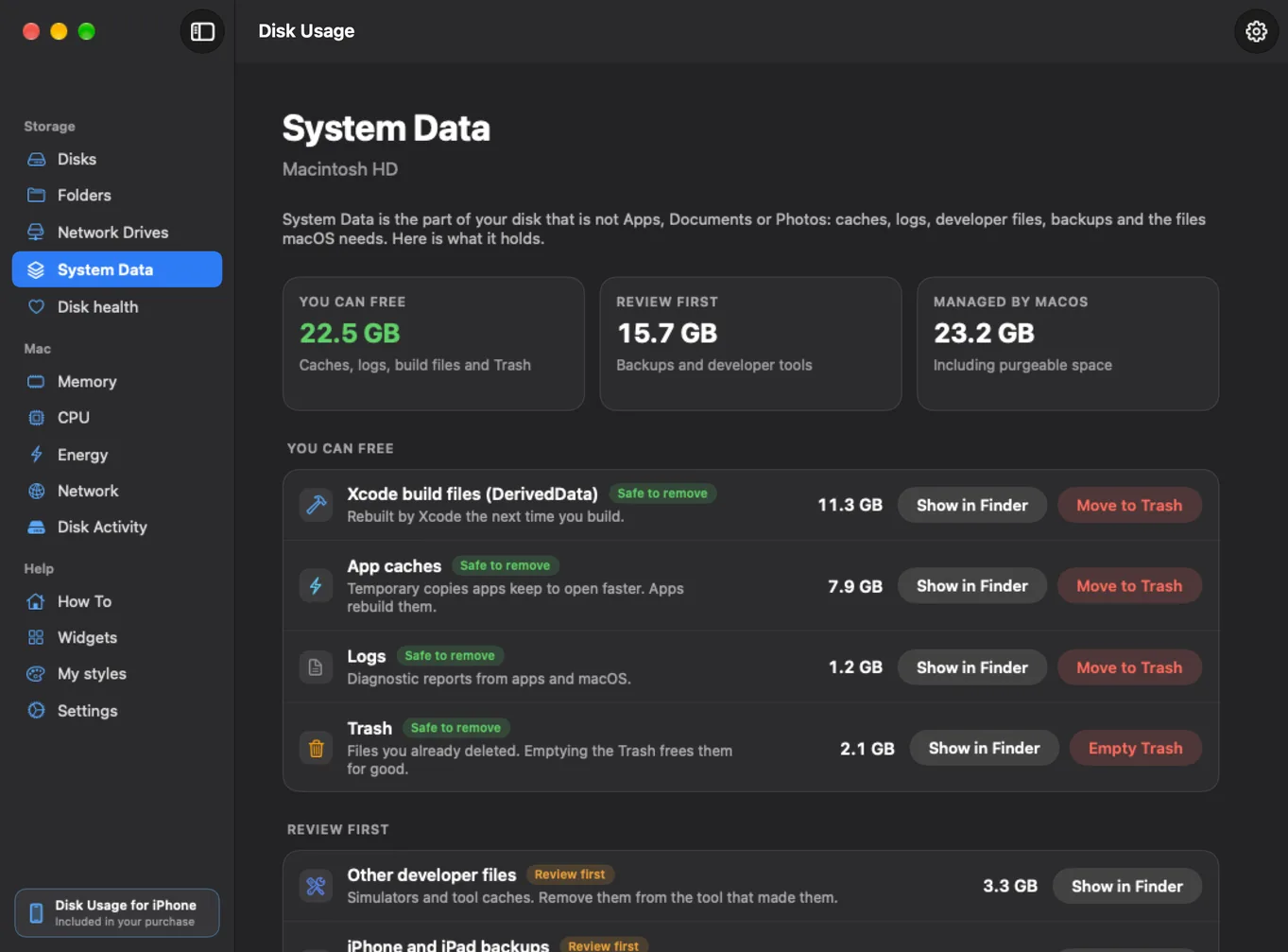
Apple says System Data contains files that do not fall into the other storage categories. It lists items such as logs, caches, virtual memory files, temporary files, fonts, app support files and plug-ins. macOS manages this category, its size changes over time, and you cannot manage it as a whole from the storage settings. Do not delete system files by hand to make it smaller. Disk Usage shows what it can identify inside System Data, in three groups: what you can free, what to review first and what macOS manages.
Does a disk widget slow down the Mac?
A desktop widget does not update continuously. macOS decides when widgets refresh, within a limit it manages for each widget. The practical effect is that a widget shows the value of its last refresh, which can be a little behind. To see what any app uses on your own Mac, including Disk Usage, open Activity Monitor.
Can I see the free space of a NAS or network drive?
With Disk Usage, yes: network volumes that are connected to your Mac can be shown in its widgets next to your startup disk and external drives. In the Network Drives widget, one drive is free, and showing more than one is a one-time purchase. When a network drive is not connected, its current free space cannot be read.
Why do two tools show different free space?
Part of the answer can be purgeable space. Apple explains that free space is the space that is physically open, while available space also counts purgeable data that macOS can remove when needed. Check what each figure is called before comparing them.
Put your free space where you can see it